
Autofile Help and User Guide
Presentation
Autofile is a Thunderbird
add-on designed to accelerate and simplify the way you file messages after you
read them. It adds a powerful Autofile button at the top right of the displayed
message. This button will allow you to file the displayed message directly to
each folder where you generally file messages from each message author. No more
drag and drop needed.
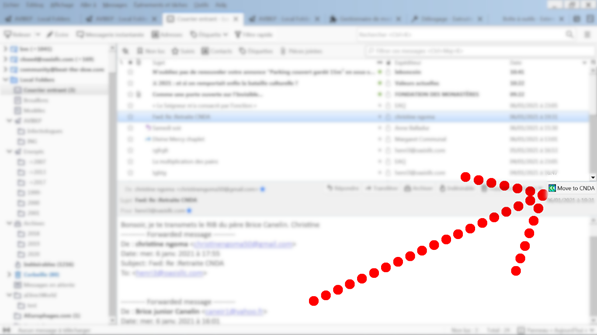 This add-on was designed to be intuitive, and reading
this help file should not be necessary except to learn specific details.
This add-on was designed to be intuitive, and reading
this help file should not be necessary except to learn specific details.
The Autofile button : red or green?
There is only one Autofile
button, which can appear either red or green. The button is red when the
Autofile system does not know where to file the displayed message. The Autofile
button is green when the Autofile system knows where to file the displayed
message.
When the button is red, it is
labeled ‘Autofile’. When the button is green it is labeled with the name of the
mail folder where Autofile will move the displayed message when you press the
button. When the button is green, the full path of the target folder is shown
in the tooltip that appears next to the Autofile button when you point the
button with your mouse.
The green button:

When Autofile button is green,
just press it and the displayed message will move to the target folder whose
name appears on the button. On the button above, the message will move to a
folder named CNDA.
If you hold Shift key while
pressing the green button, the message is not moved but an Autofile
configuration window pops up. This allows you to change the target folder or
deregister the e-mail author (i.e. clear any previously set target folder for
this author).
Hitting together Ctrl + Shift
+ Z will reverse the last message move and the message will come back where it
was before you pressed the Autofile button..
The red button:

When Autofile button is red,
press the button and an Autofile configuration window will appear.
The top button:

The top button allows to
select more than one message in the message list pane and have them filed in
their respective folders based on their author e-mail address with a single
click on the button.
If the author of one of the
selected message is not already registered, then the message will not move,
nothing will happen for this message.
If you want to cancel the
moves, hit Ctrl + Z repeatedly for each move to cancel.
The Autofile configuration
window
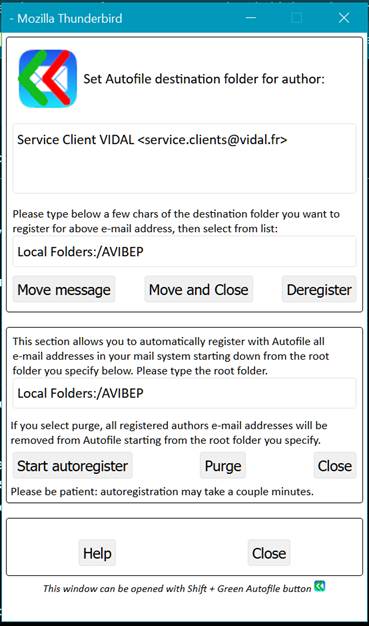
The Autofile configuration
window has 2 distinct sections.
 The
top section: simple registration
The
top section: simple registration
The top section will allow you
to specify the target folder where to move the currently displayed message. You
will see the name of the author of the currently displayed message. You need to
select the target folder by typing a few letters of its name in the empty field
and then select the folder from the list. Then press ‘Move message’ and the
message will move to the target folder and the target folder will be registered
for this author. From now on, when you display a message from this author in
Thunderbird, you will have the green button.
If you specify a path to a
target folder that does not exist yet, such as “Local
Folders:/AVIBEP/newfolder1/newfolder2”, the new folders will be created and
then the message moved. This makes things easier than having to browse the
folder structure in Thunderbird to create the new folder.
Alternatively, after you
select a target folder, you may want to press ‘Move and Close’. It is the same
as clicking ‘Move message’ and then closing the window: the current message
will be moved and the target folder will be associated with this author.
In the same way you can
deregister a registered address by clicking Deregister. From now on, when you
display a message from this author in Thunderbird, you will have the red
button.
The field showing the
currently displayed message author may be edited. However if you edit it, only
the Deregister button will be available, while the button to move the message
will be disabled.
Note that Autofile registers
only the raw e-mail address, avibep@avibep.org, not the description part
AVIBEP, which is completely ignored. Therefore an author appearing in various
mails with two different descriptions but the same e-mail address will be
handled as a unique author.
The
bottom section: automatic mass registration
The bottom section of the
Autofile configuration window allows you to automatically mass register authors
and their target folders. You specify a root folder in the field by typing a
few letters of the folder name and then you select the folder in the list that
appears. Now press ‘Start autoregister’ and Autofile will check each message in
the folder and in its subfolders. For each message author, it will register the
containing folder as target folder for this author if the author is not already
registered.
During this process of
automatic mass registration, an author WILL NOT BE REGISTERED if any of the
following cases is true:
-
this author
belongs to more than one folder of the folder hierarchy below the root
folder: Autofile cannot choose the
target folder it needs to associate with this author. You will need to register
it using the simple registration above.
-
this author
is already registered: it was probably manually registered by you and Autofile
will not override your registration.
If you close the window while
the autoregistration process is running, the autoregistration will be fully cancelled:
no registrations will remain from this aborted registration.
Warning: mass registration may
take time if you have lots of mails. The good news is that you can select the
folders to mass register. If you do not have too many e-mails, feel free to mass
register all folders at once by selecting ‘Local Folders’ as root folder.
The ‘Purge’ button next to
‘Start Autoregister’ allows you to automatically remove from registration in
Autofile all authors in a folder hierarchy. An author will be removed if one of
his messages is in a folder belonging to the folder hierarchy and the author is
registered for this folder. An author whose message is found in one of the
folder of the folder hierarchy, but who is registered to be filed another
folder will not be deregistered.
During a purge, whether
authors were automatically or manually registered makes no difference: they
will all be removed. If you close the window while the purge process is
running, the authors already purged by the process will remain purged.
The
help section
Click ‘Help’ to open the help
you are currently reading. ‘Close’ will close the Autofile configuration
window.
Renaming a folder
What happens if you rename a
folder that is associated with one or more authors? If you rename a folder that
is associated with one or more authors, Autofile will not be able to move
messages to the renamed folder.
Autofile will deregister an
author associated to the renamed folder only when a message from this author is
displayed in the message pane: the Autofile button will become red. Other
authors associated with this folder will not be affected. This means that if
you change your mind and rename the folder back to its previous name,
registrations will still be valid for all authors for which no message was displayed.
Once you rename a folder, no
previous registrations to this folder will be valid. To let authors being
registered to this folder:
1.
open the
Autofile configuration window, then select the renamed folder
2.
click purge
to erase all old registrations of authors to the folder previous name
3.
click Start
autoregister.
Shortcut: Ctrl + Shift +
W
Hitting together Ctrl + Shift
+ W is the same as hitting the Autofile button, be it red or green. When the
Autofile button is red, hitting Ctrl + Shift + W while open the Autofile
configuration window. When the button is green, hitting Ctrl + Shift + W will
move the current message to the folder displayed on the button.
Shortcut: Ctrl + Z
Hitting together Ctrl + Z will reverse the last message move. This
can be useful if you pressed the green Autofile button without paying much
attention to the displayed label. Where did the message go? Don’t worry: just
press Ctrl + Z and the message will come back to its original folder.
If you have an antivirus that
scans outgoing emails, this feature may not work immediately after you move the
message as the antivirus may be scanning the message, though it is not
outgoing. In this case, just wait 10 secs or more and then hit Ctrl + Z.
Shortcut – getting
help: Ctrl + Shift + H
If you get trouble with
Autofile, or with a new version, we want to fix the issue. There is a way for
us to check what happens on your computer. Just hit Ctrl + Shift + H, and a new
small window will pop up showing that you are starting to trace the issue. Then
replicate the issue, such as trying to move a message that does not want to
move. Then hit the “Send trace to
support” button in the small popup window. A prefilled message will show up.
Complete it with a description of your problem and screen copies, and send it
to us. The destination is prefilled. Thank you.
Note: if you press Ctrl +
Shift + H while already tracing, this will bring to front the trace popup
window. If you want to cancel the tracing, just close the trace popup window.
Things to
know
·
Opening the
Autofile configuration window can be achieved either by pressing the red
button, or by holding the Shift key and pressing the green button.
·
Hitting
together Ctrl + Z will reverse the last message move.
·
Please note
that: if the currently displayed message is in the Sent folder, the Autofile
configuration window displays the first recipient of the message instead of
displaying its author. This way Autofile remains useful for the Sent folder.
·
Autoregistration
preserves registrations that were previously entered, manually or
automatically. Once a registration has been entered, manually or automatically,
there is no difference: it will be preserved during future autoregistrations.
·
Before
using autoregistration on a very large folder, test it on small folders to have
an idea of how fast it works. If you do not want to keep these test
registrations, just use the purge button with the same folder.
·
If an
author does not want to be registered when you autoregister authors down from a
root folder, this is likely because this author appears in at least 2 different
folders of the folders hierarchy below the root folder (the root folder being
included in this hierarchy).
·
You can
overwrite a registration, ie re-register an author: if you want to change the
registered folder for an author, you need first to have the Autofile
configuration window open. Once the Autofile configuration window is opened,
select a Thunderbird message from the author you want to re-register. His
e-mail address will now be displayed in the Autofile configuration window. Now
choose a destination folder with the folder selection field and press ‘Click to
move message’. This will register the author with the new target folder.
·
In the same
way, if you want to deregister an author, you need to have the Autofile
configuration window open. Once the Autofile configuration window is opened,
select a message from the author you want to de-register. His e-mail address
will now be displayed in the Autofile configuration window. Click ‘Deregister’.
This will deregister the author.
·
If you need
to remove some entry in a dropdown list of folders, select the entry by
pressing on your mouse left button and, still while pressing the left mouse
button, press delete key.
·
Autofile
does not modify your mail data except when it moves a message to a folder.
Registering or deregistering or purging do not modify your mail data. Autofile
never erases your data.
·
Obviously
no data is exchanged with the outside world except when you send a mail to
support.
·
By using
Autofile, you expressly understand and agree that you are using it at your own
risk and that you will not hold the developer or Mozilla liable for any issue
related to Autofile use.
More technical
special stuff
Configuration Window comboboxes
You may have noticed that the list of target folders
in Autofile configuration window is not the same in both comboboxes (top
Autofile target folder combobox and bottom Autoregistration combobox). This
follows a couple of user requests.
Here are the rules we use to fill these boxes:
* accounts
are not allowed as target because you cannot file an e-mail to an account: you
can file only to a folder
* accounts
is allowed for Autoregistration because this allows to autoregister all folders
of the account
*
* special
folders such as 'inbox', 'sent', 'drafts', 'templates', 'outbox', 'trash',
'archives' follow special rules:
*
*
'drafts', 'templates', 'outbox' and their subfolders are forbidden from the top Autofile target folder combobox
*
'drafts', 'templates', 'outbox', 'trash' and their subfolders are forbidden
from the bottom Autoregistration
combobox
*
* inbox folder is allowed for Autofile because
it may be useful to some users
* inbox subfolders are allowed for Autofile
because that’s where some users file their emails
* inbox folder is forbidden for
Autoregistration because it can be big and has no interest
* inbox subfolders are allowed for
Autoregistration because that’s where some users file their emails
*
* sent folder is allowed as target for Autofile because it can be useful to users
with multiple email accounts
* sent
folder is forbidden from Autoregistration because of its size and it is useless
for autoregistration, and same for its subfolders
The Autofile button and shared email
address
The Autofile button is designed to display the target
folder based on the current message full author identity, not merely on the
author email address.
If a couple authors share the
same email address, i.e. if a unique e-mail address is used under different
identities, such as Elise Martin <elise@martin.com>,
Secretary <elise@martin.com> and elise@martin.com, then each identity may be
registered with Autofile configuration window and have its own target folder
that will show in the Autofile button.
However, note that if a bare
email address, such as elise@martin.com,
is registered, and a displayed e-mail has an unregistered author using the same
address, such as Elise Martin <elise@martin.com>,
then Autofile button will turn green and display the target folder for the
e-mail address elise@martin.com instead
of turning red because it doesn’t know the unregistered Elise Martin <elise@martin.com>.
In this case, if you want to
register Elise Martin <elise@martin.com>
to a different target folder, just open the configuration window (shift + green
Autofile button). If you deregister Elise Martin <elise@martin.com> then Autofile will
still use the target folder for the e-mail address elise@martin.com.
The Autofile button and the Sent
folder
As already mentioned, messages in the Sent folder are
filed by Autofile based on their recipient (To: ) not on their author (From: ).
Therefore, while you browse the Sent folder, the Autofile button label will
display the target folder based on the current message recipient.
Known
issues
All the following issues are
minor issues that will likely be fixed by future Thunderbird releases.
If you have an antivirus that
scans outgoing emails, hitting Ctrl + Z to reverse a move may not work
immediately after you move the message as the antivirus may be scanning the
message, though it is not outgoing. In this case, just wait 10 secs or more and
then hit Ctrl + Z. This problem happens with Bitdefender if it is set to scan
outgoing emails.
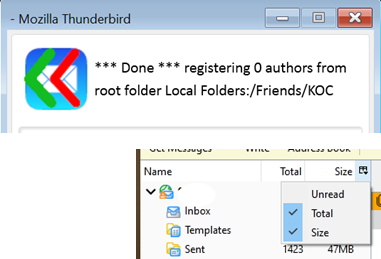 In rare cases, due to a Thunderbird bug, Autofile
cannot access a folder messages list in order to autoregister or purge the
authors using the Autofile configuration window. If you try to autoregister or
purge such folder authors registrations, the Autofile configuration window will
show an abnormal number of messages or authors, such as 0 (see picture), while
the folder actually contains many messages with authors unique to this folder,
who should have been autoregistered or purged. This issue happens because
Thunderbird index file is defective for this folder.
In rare cases, due to a Thunderbird bug, Autofile
cannot access a folder messages list in order to autoregister or purge the
authors using the Autofile configuration window. If you try to autoregister or
purge such folder authors registrations, the Autofile configuration window will
show an abnormal number of messages or authors, such as 0 (see picture), while
the folder actually contains many messages with authors unique to this folder,
who should have been autoregistered or purged. This issue happens because
Thunderbird index file is defective for this folder.
You can see that the index
file is defective by looking at the number of messages in the folder as it is
displayed in Thunderbird left pane. If it is not displayed, right click on the
small column icon  at the top
right of the left pane and put a check mark in front of ‘Total’ (see picture):
this will add a column in Thunderbird left pane that shows the number of
messages in each folder. If the number of messages is blank for a folder, the
folder need be fixed before you can autoregister it.
at the top
right of the left pane and put a check mark in front of ‘Total’ (see picture):
this will add a column in Thunderbird left pane that shows the number of
messages in each folder. If the number of messages is blank for a folder, the
folder need be fixed before you can autoregister it.
If this happens with one of
your folders that you need to autoregister or purge, just open the folder in
Thunderbird, this will force Thunderbird to fix the index file for this folder.
The number of messages in this folder will now show in the ‘Total’ column of
Thunderbird left pane. Then autoregister and purge should now work for this
folder. Unfortunately, this will not fix the folder’s subfolders if their index
is screwed too: you need to select the subfolders one at a time to fix them as
well.
In rare cases, due to a
Thunderbird bug, Autofile may seem not move a message when you press the green
button. Actually it does move the message but the message remains displayed in
the source folder, though you will find it as expected in the target folder. To
get rid of this sticky message, just delete it in the source folder. No panic:
as we said, the message was moved in the target folder.
Autofile uses the Thunderbird
API which will make it work for years. However this API is rather new and some
functions appear not to work 100%. Especially a call to the API
browser.messages.move([currentMessage.id] ,targetFolder.id) sometimes fails for
unknown reason. There is no way around this issue as this is the only way to
move a message. Usually when such kind of issues appears, restarting
Thunderbird may help.
Thunderbird API is supposed to
work on Linux, Windows and Apple systems. Users have reported small issues with
Apple and Linux.
Certainly future Thunderbird
versions will fix such issues in the API.
Support
Before asking for support,
please disable any Thunderbird extension you may have installed, and check if
the issue persists. Most issues, including buttons not showing up, come from
extensions/add-ons that are not compatible with Thunderbird API and therefore
prevent Autofile from operating properly. Antivirus may also cause trouble
(Bitdefender).
If you have a problem with a
new version, you can download older versions from Thunderbird add-ons here.
If some of the registered addresses do not seem to be registered anymore, just
use autoregistration on their folders. Autoregistration will not erase previous
registrations.
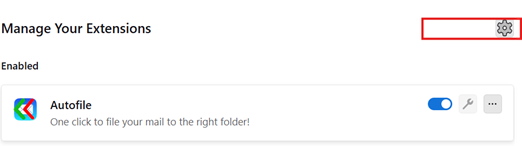 We try to fix problems when users alert us. If the
version you are using is not the latest, please try the latest. Maybe the issue
is already fixed. The version number is written below the Autofile image in the
Autofile configuration window. You can update your add-ons to the latest
versions by clicking on the tool wheel (see picture) in Add-ons and Themes >
Extensions and selecting Check for Updates.
We try to fix problems when users alert us. If the
version you are using is not the latest, please try the latest. Maybe the issue
is already fixed. The version number is written below the Autofile image in the
Autofile configuration window. You can update your add-ons to the latest
versions by clicking on the tool wheel (see picture) in Add-ons and Themes >
Extensions and selecting Check for Updates.
We want to fix issues. There
is a way for us to check what happens on your computer: Just hit Ctrl + Shift +
H, and a new small window will pop up showing that you are starting to trace
the issue. Then replicate the issue, such as trying to move a message that does
not want to move. Then hit the “Send
trace to support” button in the small popup window. A prefilled message will
show up. Complete it with a description of your problem and screen copies, and
send it to us at: autofile@europhages.com.
The destination is prefilled.
Thank you.